Design Brief
You’re designing a Search & Filter experience for an internal enterprise tool that helps teams manage projects across different departments.
Users log in daily to find, sort, and take action on projects. They may have hundreds of items in the list, so clarity and efficiency are key.
Core Users
I conducted secondary research to understand enterprise users, their daily workflows, the challenges they face managing multiple projects, and the key features they rely on to find, track, and act on project information efficiently.
Based on research, there are two core personas involved in this enterprise project management system — each with distinct needs and workflows.
Search & Filter Experience
Enterprise Project Management Tool

Mark Rivera
IT Analyst / Project Team Member
Goals-
• Quickly locate assigned projects
• Track task deadlines and project progress
• Update status or add comments on assigned tasks
• Find relevant documents or discussions linked to a project

Priya Patel
Head of Operations / Project Manager
Goals-
• Get a high-level overview of all department projects
• Identify stalled or high-priority projects for intervention
• Monitor team performance and progress across multiple initiatives
Analysing Search & Filter Flows
Next, I studied search and filter flows on existing platforms to understand how large-scale projects are organised, discovered, and managed.
I focused on what works well, what slows users down, and opportunities for improvement.
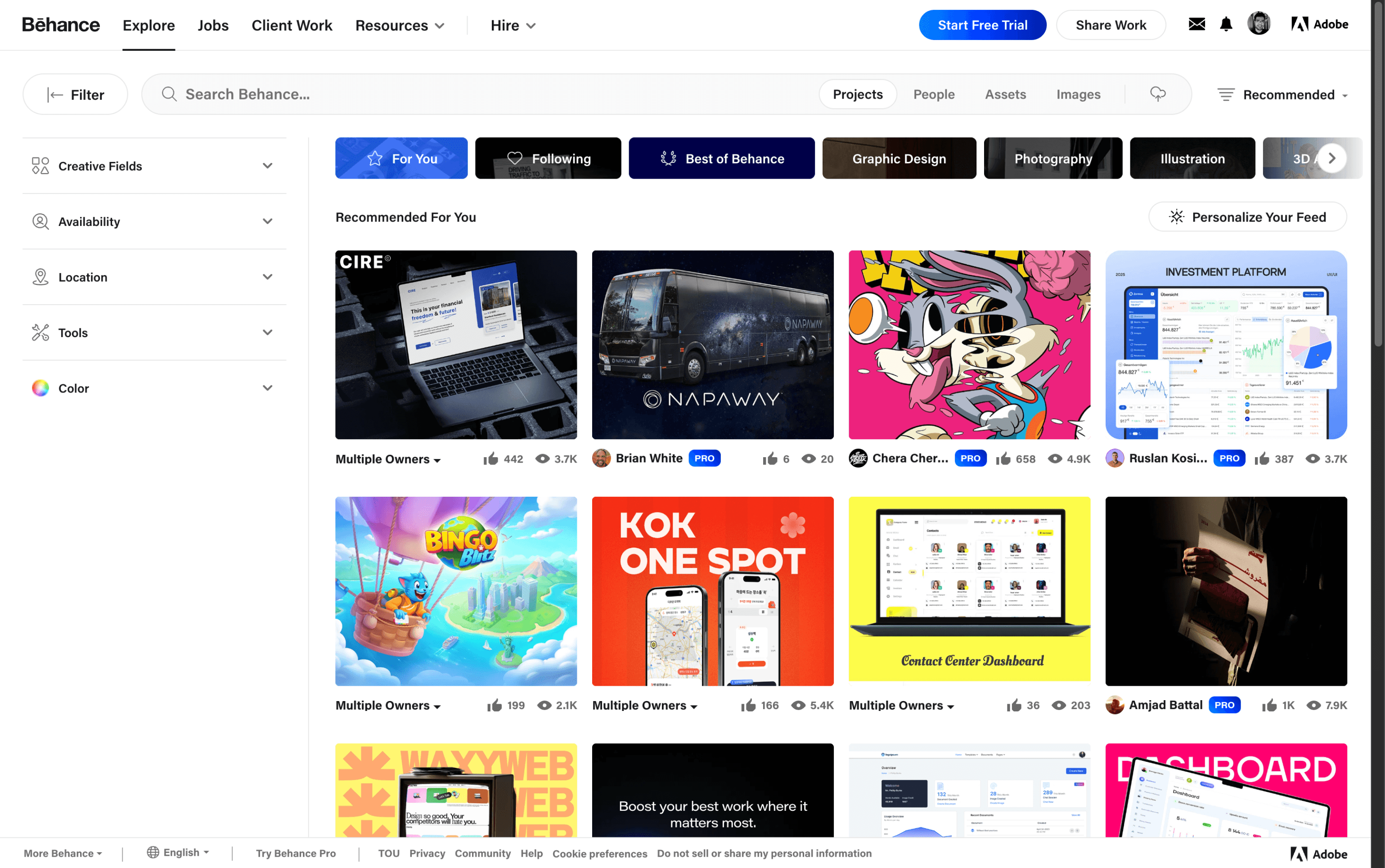
Behance
1
Collapsible filters at left side-
Increase user clicks
2
Filter chips in search bar
1
2
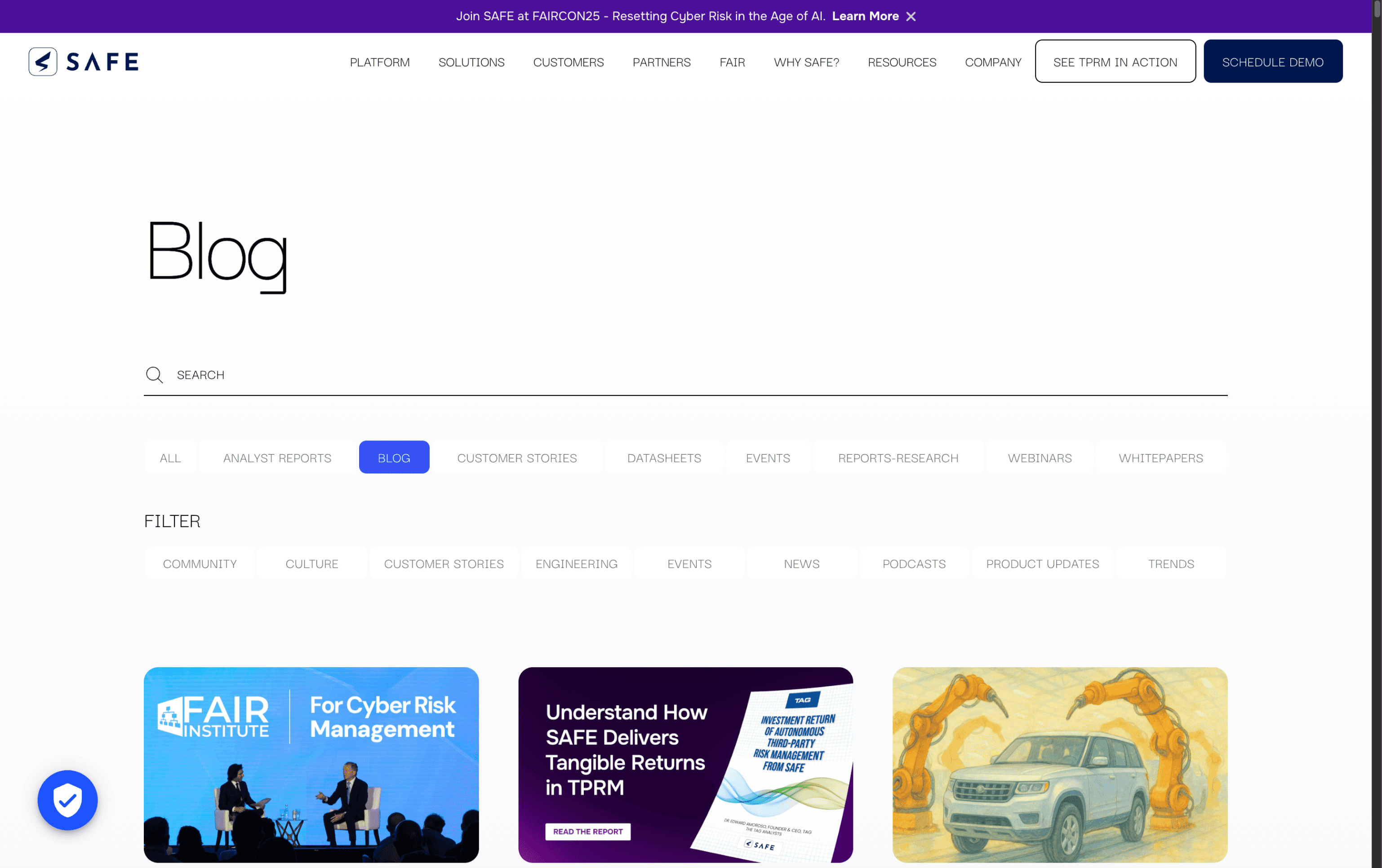
Safe Security
1
Poor color contrast of filter chips with background
2
Too many filter options, don’t even work properly
2
Cant choose multiple filters at same time
1
2
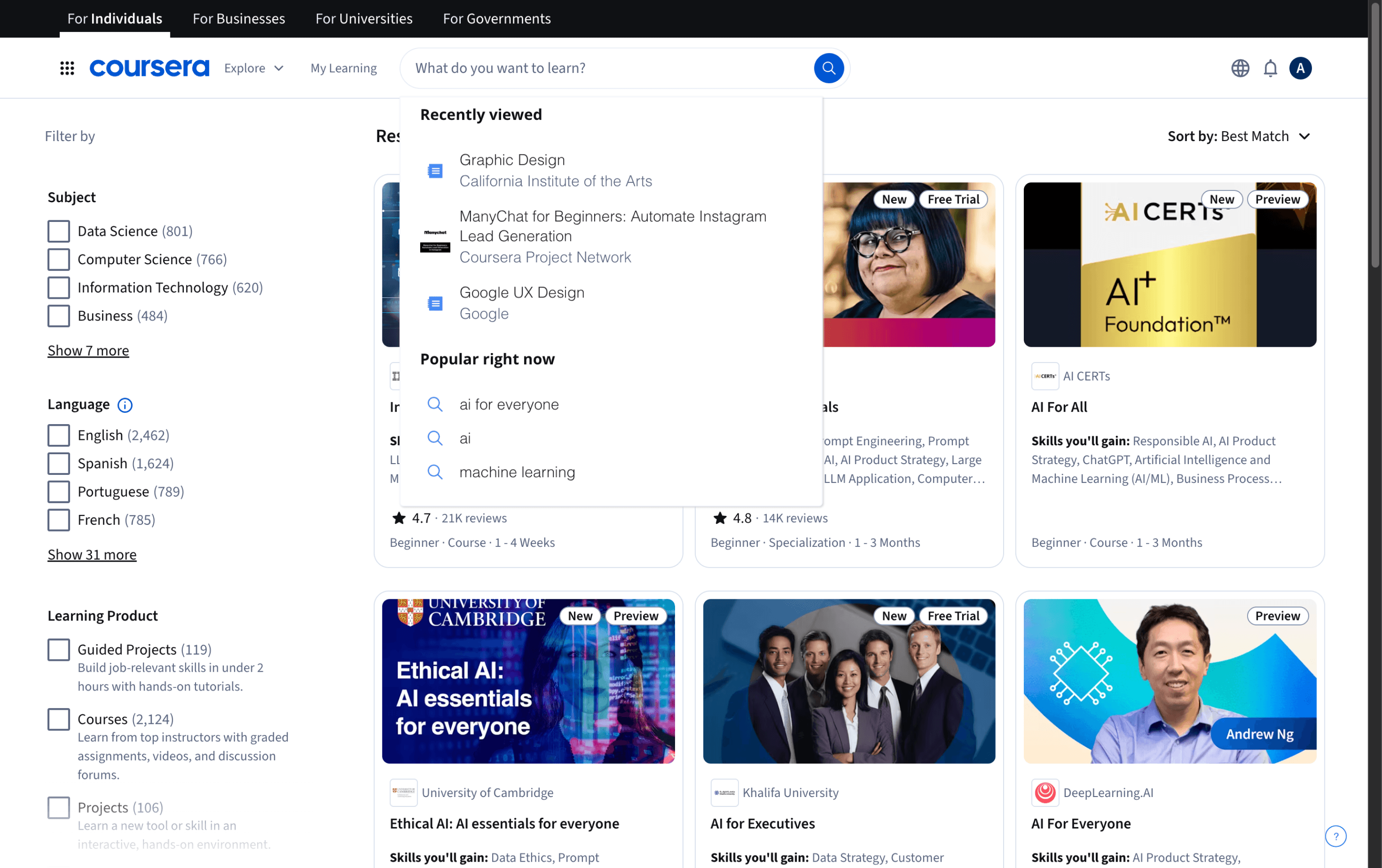
Coursera
1
Shows recently viewed and popular right now searches based on your past interactions
2
Filters don’t filter out content properly and there are too many of them
1
2
Proposed Solution
Based on user insights and platform analysis, I designed a search and filter experience that helps users quickly find, scan, and act on projects across multiple departments with ease and clarity.
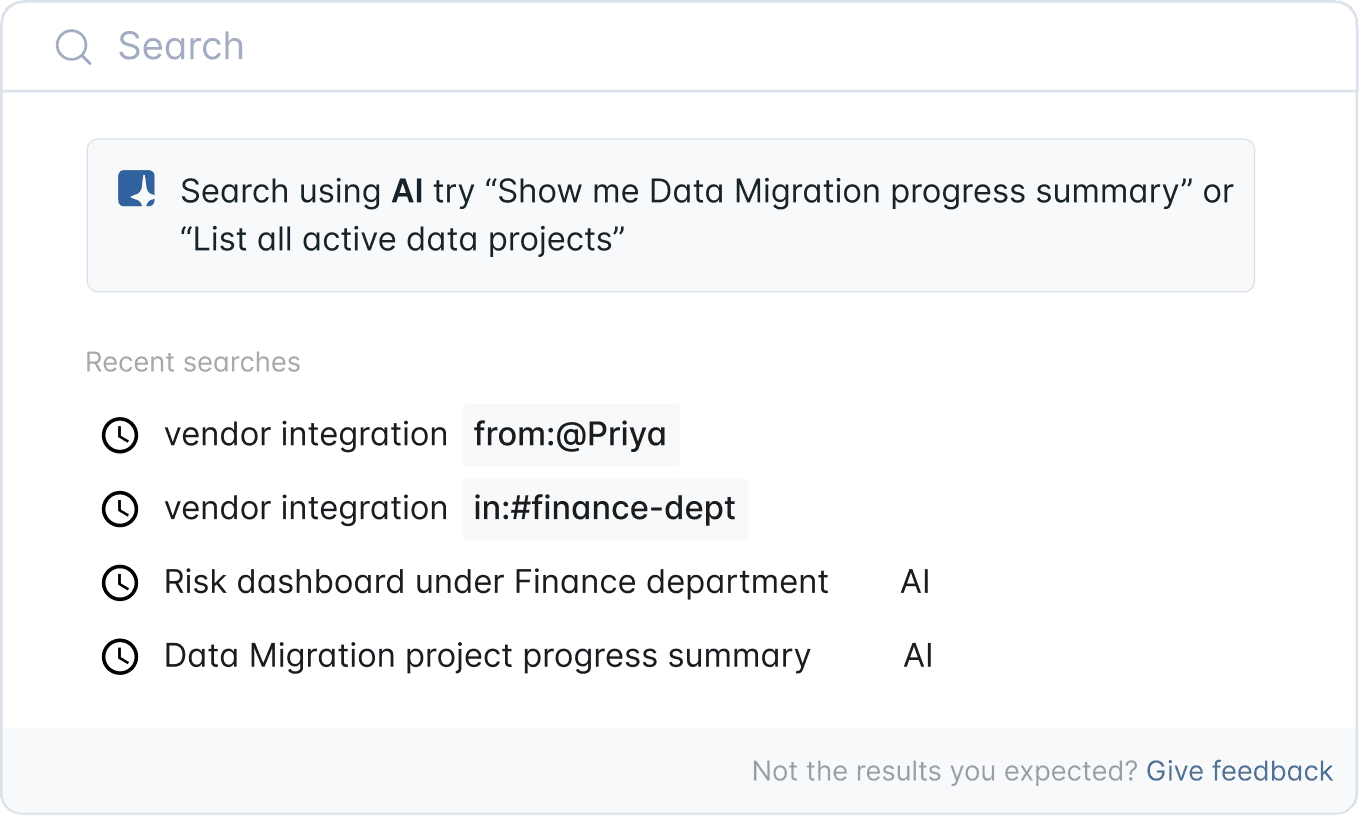
Search Bar – Initial State
The search bar is designed to make exploring data effortless and intuitive. It’s powered by AI to understand natural language, helping users find what they need without complex commands or filters.
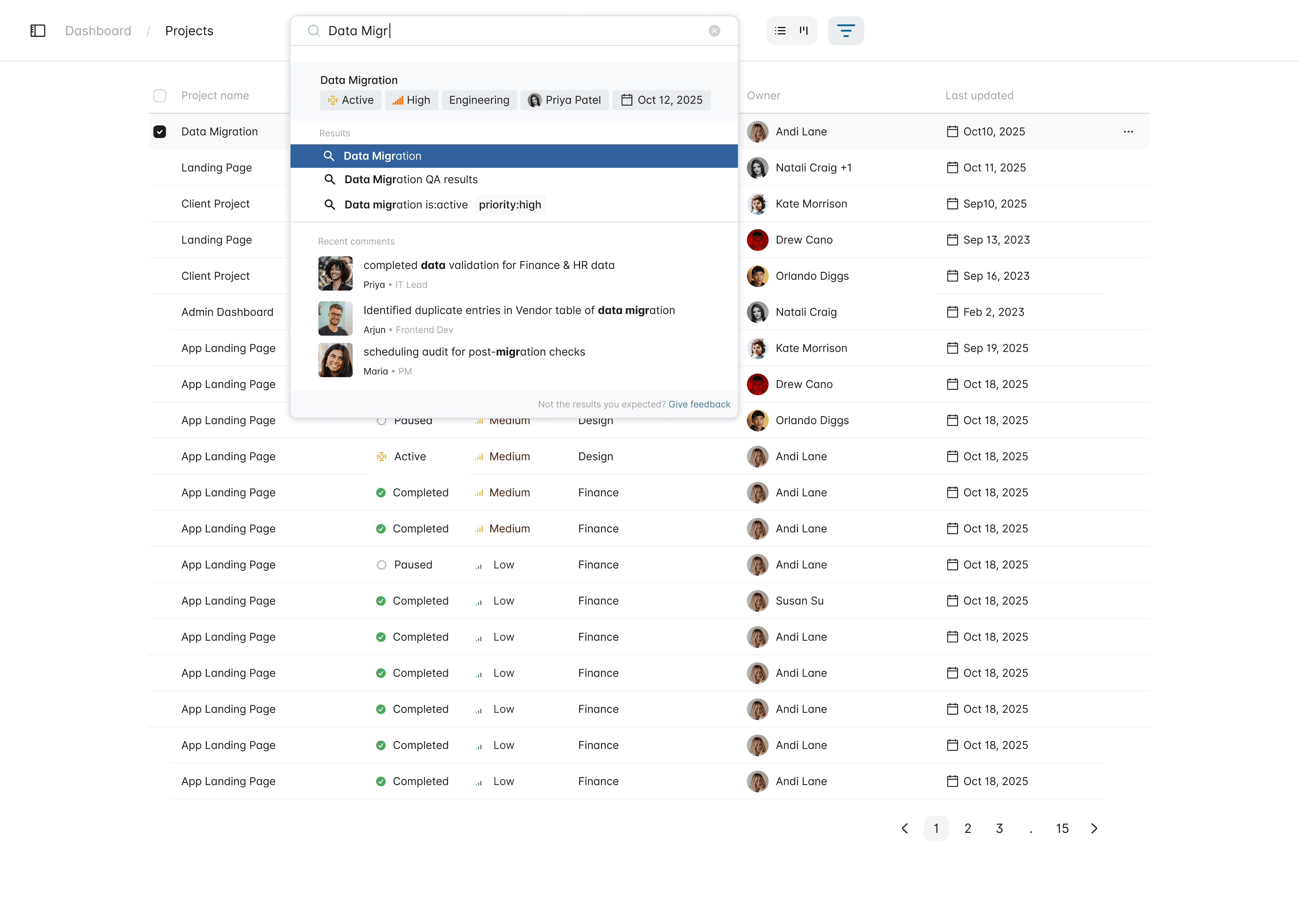
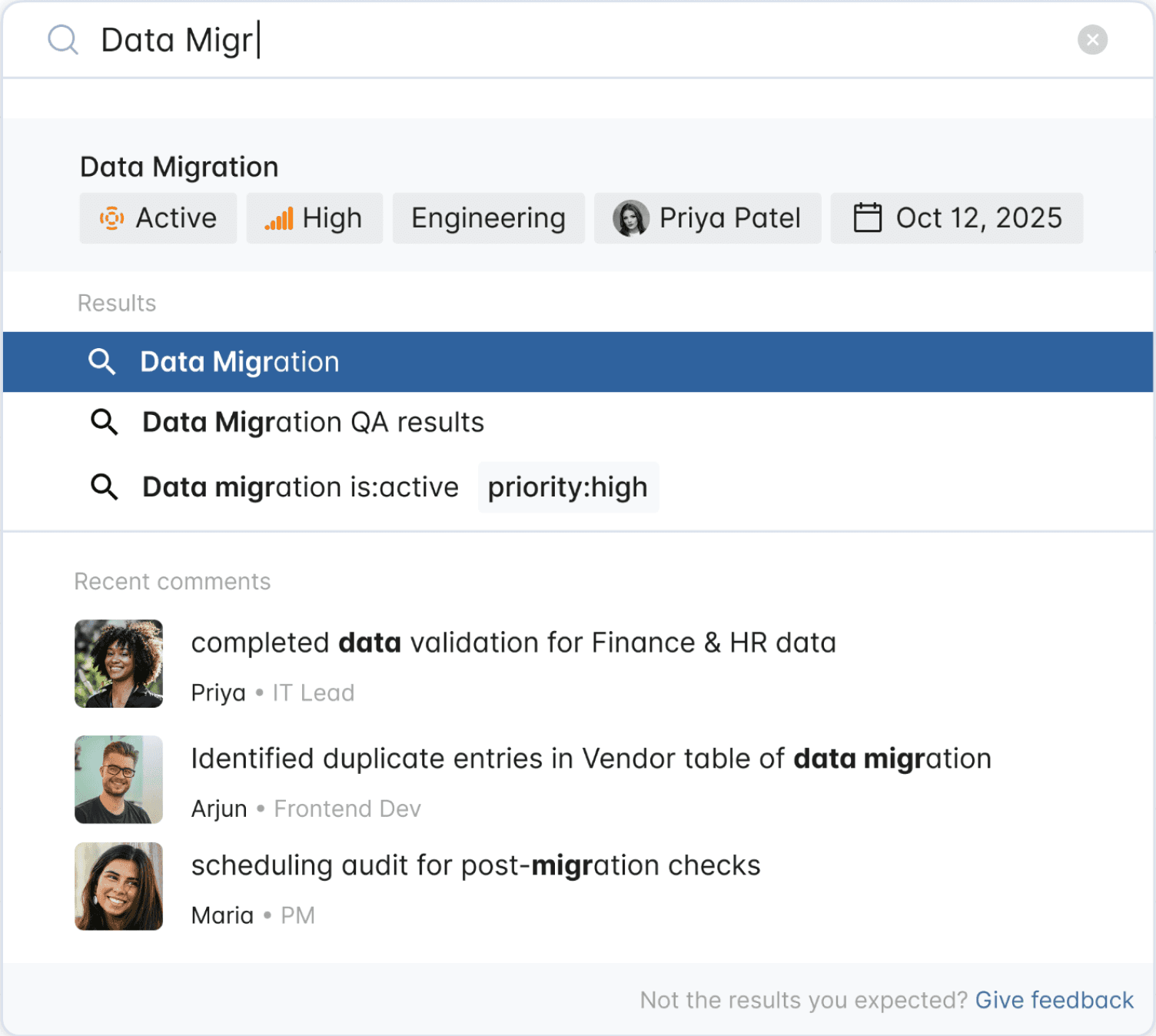
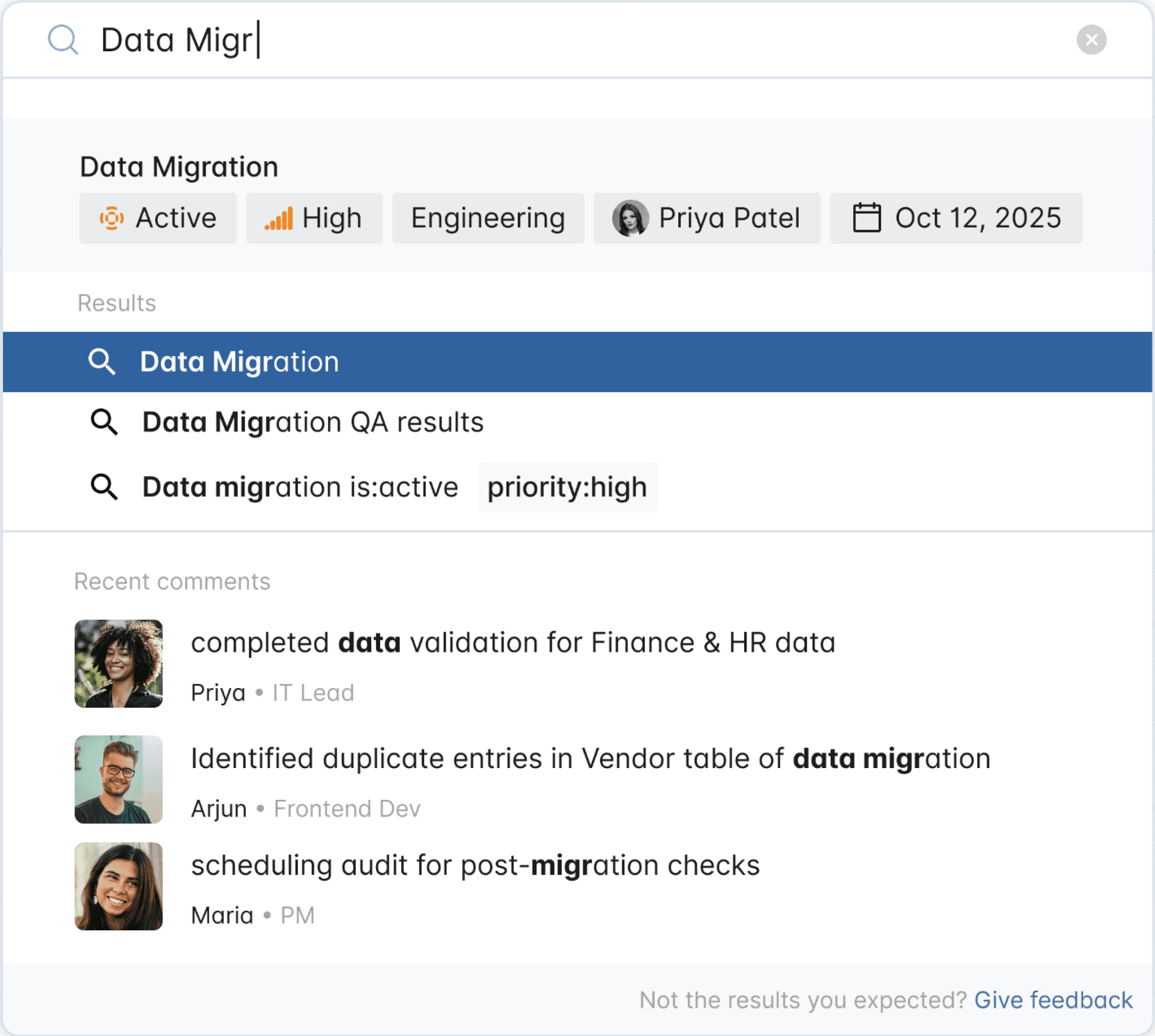
Search Bar – Typing & Predictive Results
The AI-powered search bar helps users find the most relevant projects quickly, suggests keywords to refine queries, and surfaces recent comments for context, making project discovery faster and more intuitive.
Let’s walk through the flow-
Here Mark wants to check data migration project
1
AI-powered placeholder text: Guides new users to try natural language queries
2
Recent Searches: Below the search bar, users can see their most recent queries for quick access.
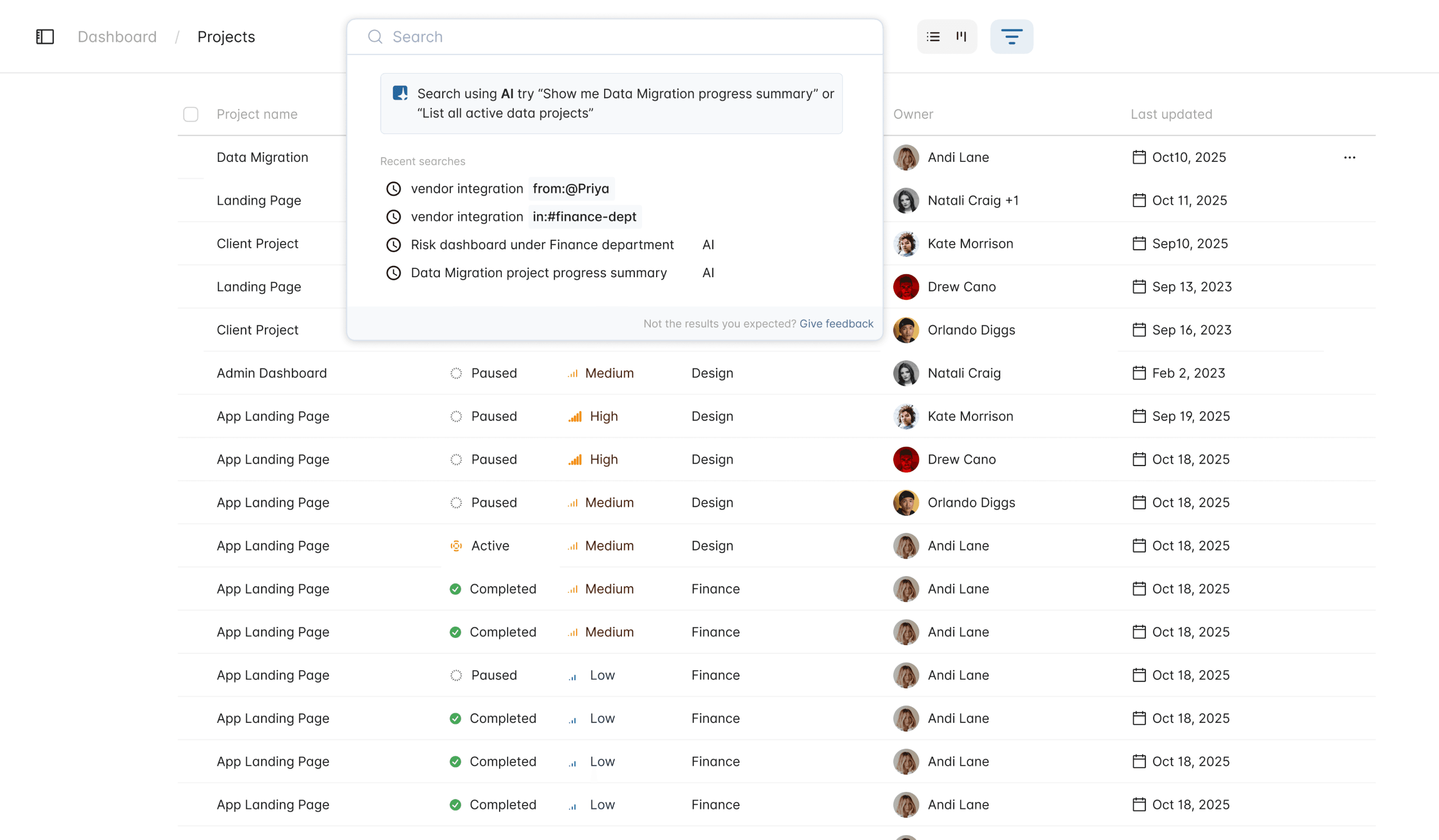
Search Bar - Initial State
1
2
1
Top Result: As the user types, the most relevant project appears at the top, based on status, priority, ownership, and past activity
2
Keyword Suggestions: Predictive keywords appear below the top result to help refine or complete the query
2
Recent Comments: Related comments or updates from the project appear underneath, providing quick context without opening the project
Search Bar - Typing & Predictive Results
Similarly, I explored search and filter flows on platforms like Slack, Amazon, and Lenovo to understand how they handle query refinement, contextual results, and user-driven filtering.
These insights helped me shape a more intuitive and responsive search experience.
1
2
3
Filters – Placement & Interaction
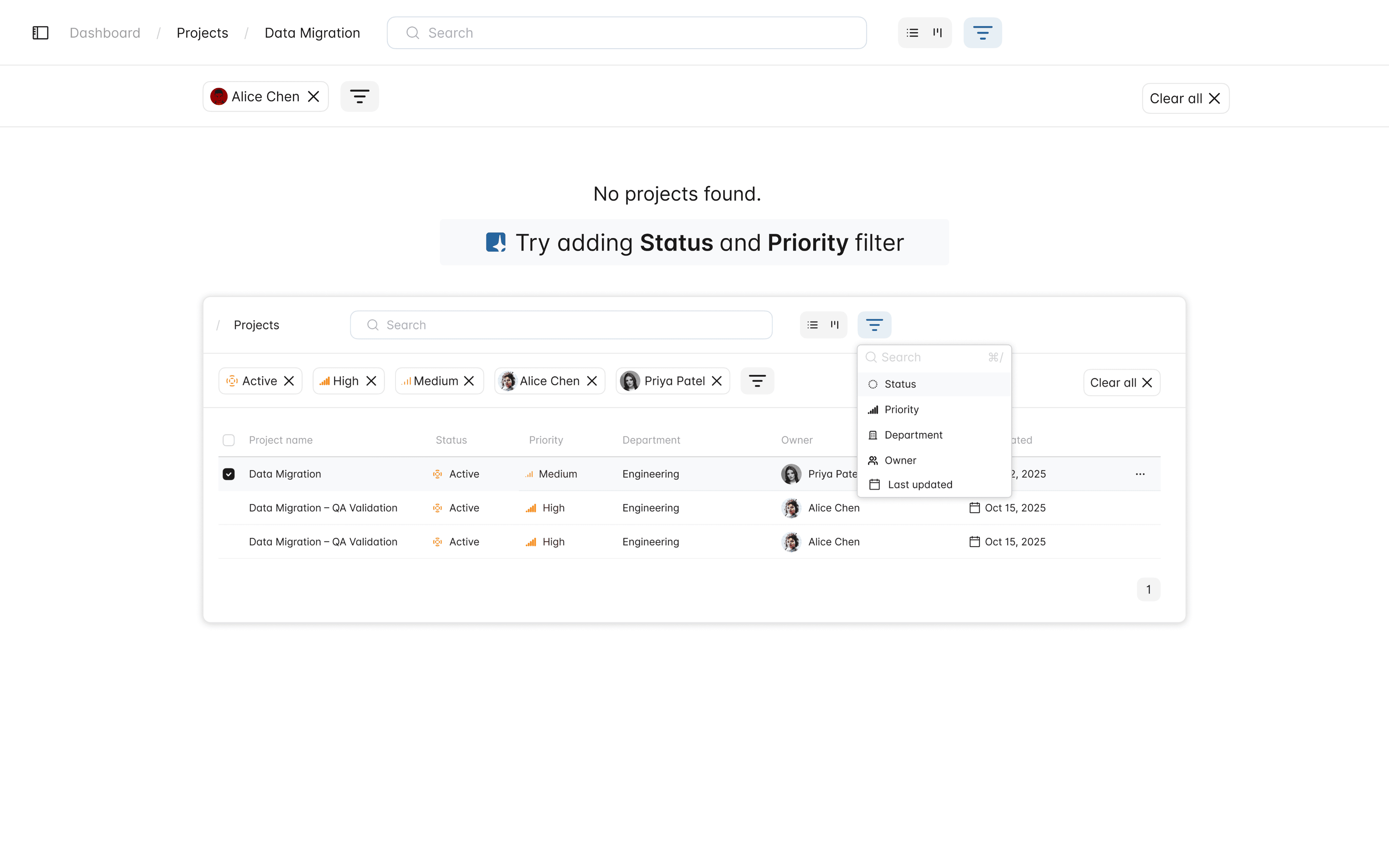
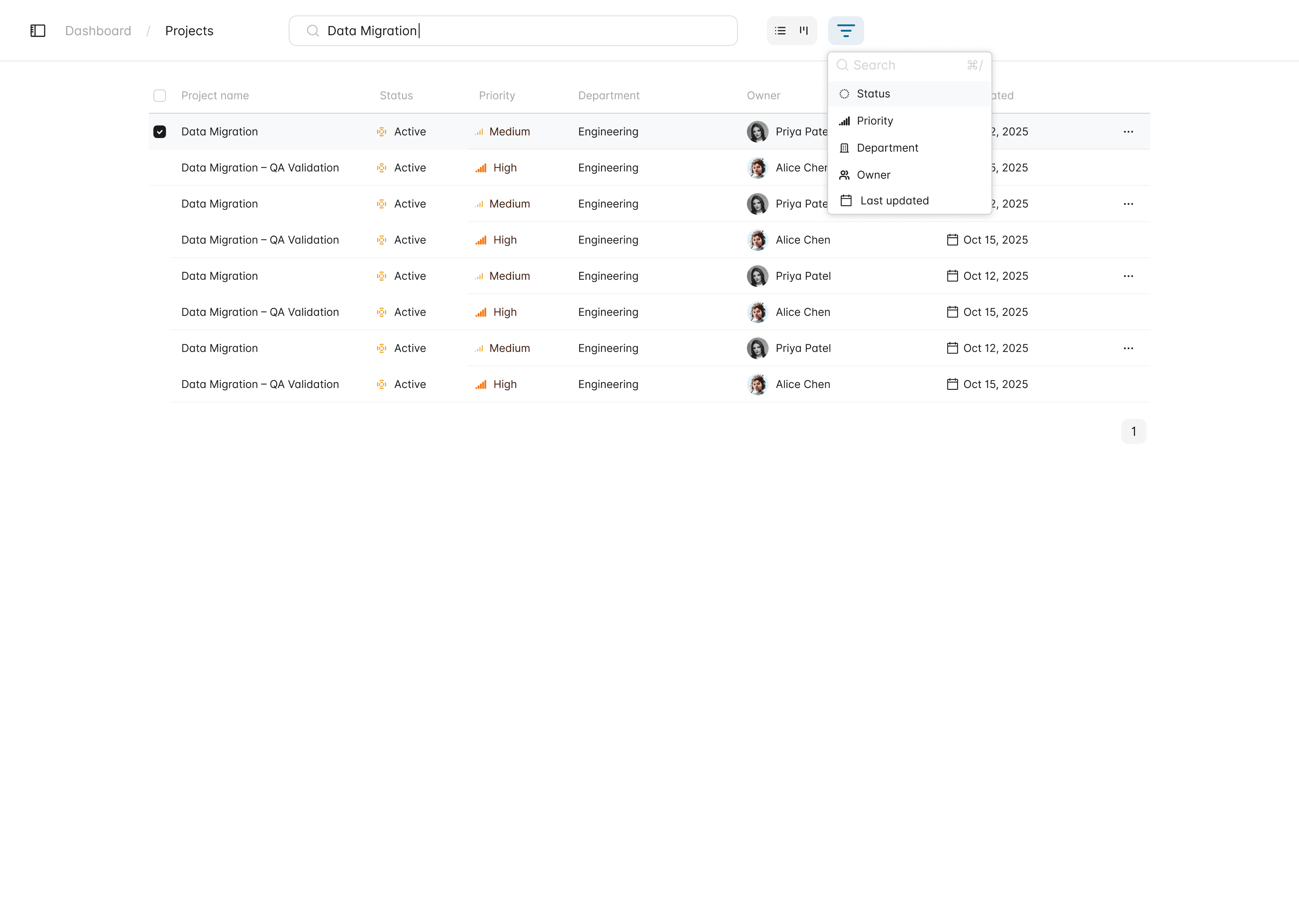
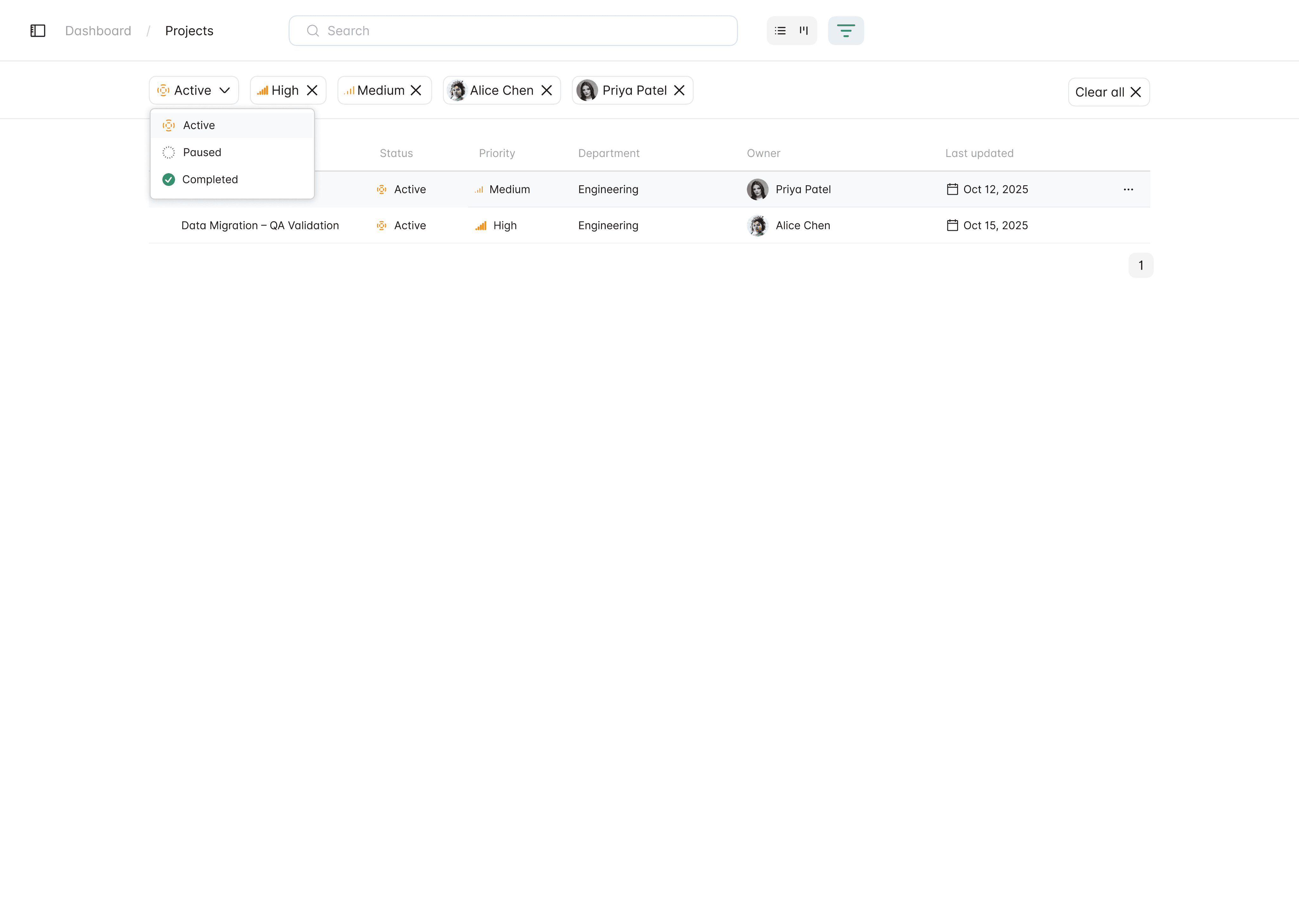
Filters are placed right next to the search bar for quick and easy access. The user can click on it to select the first filter, and once chosen, filter chips appear below the search bar.
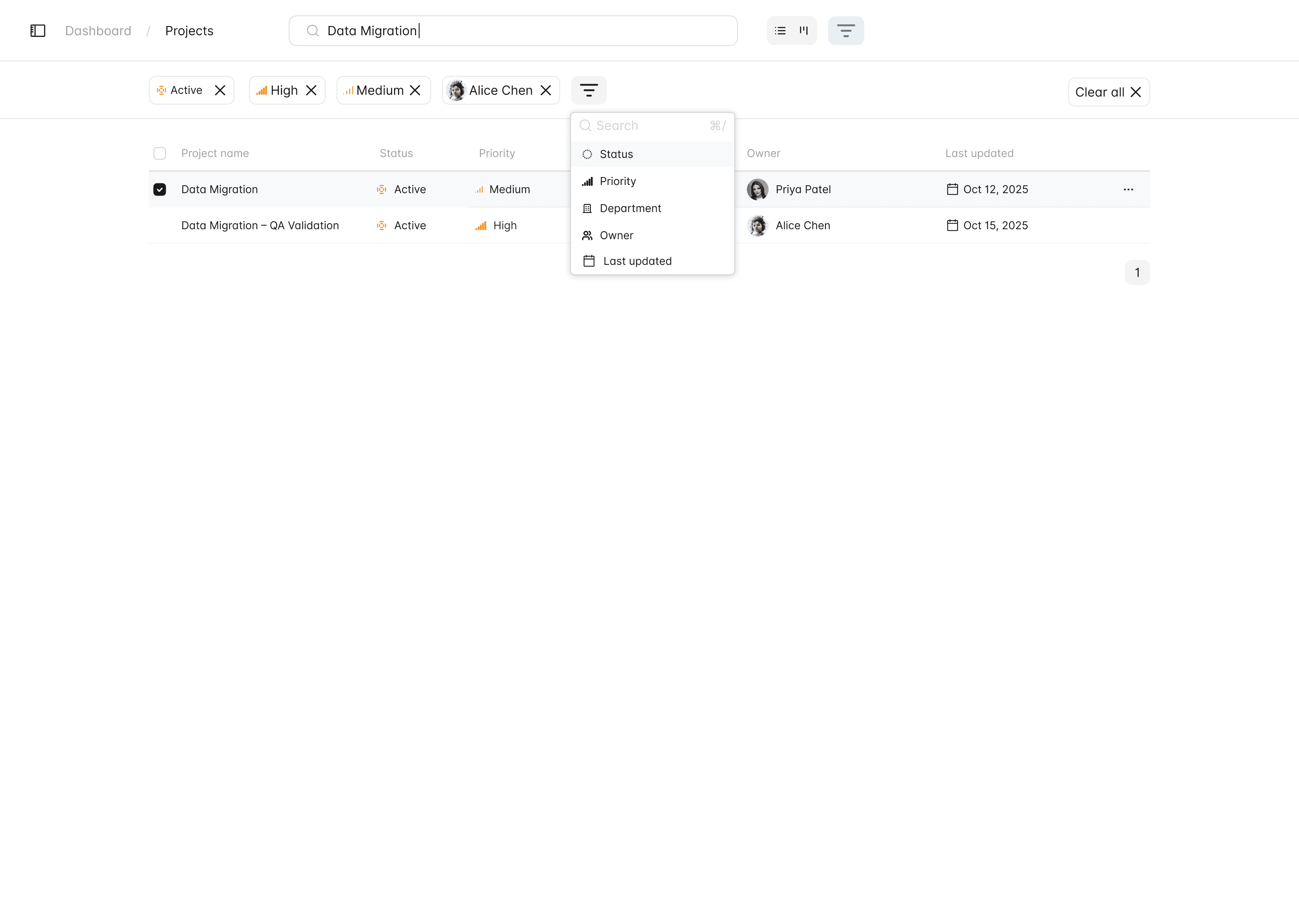
Beside these chips, a filter tab remains available for adding or adjusting more filters as needed.
Mark saw multiple results titled Data Migration, so he pressed filter next to search bar
Query-Based Search & Dynamic Filters
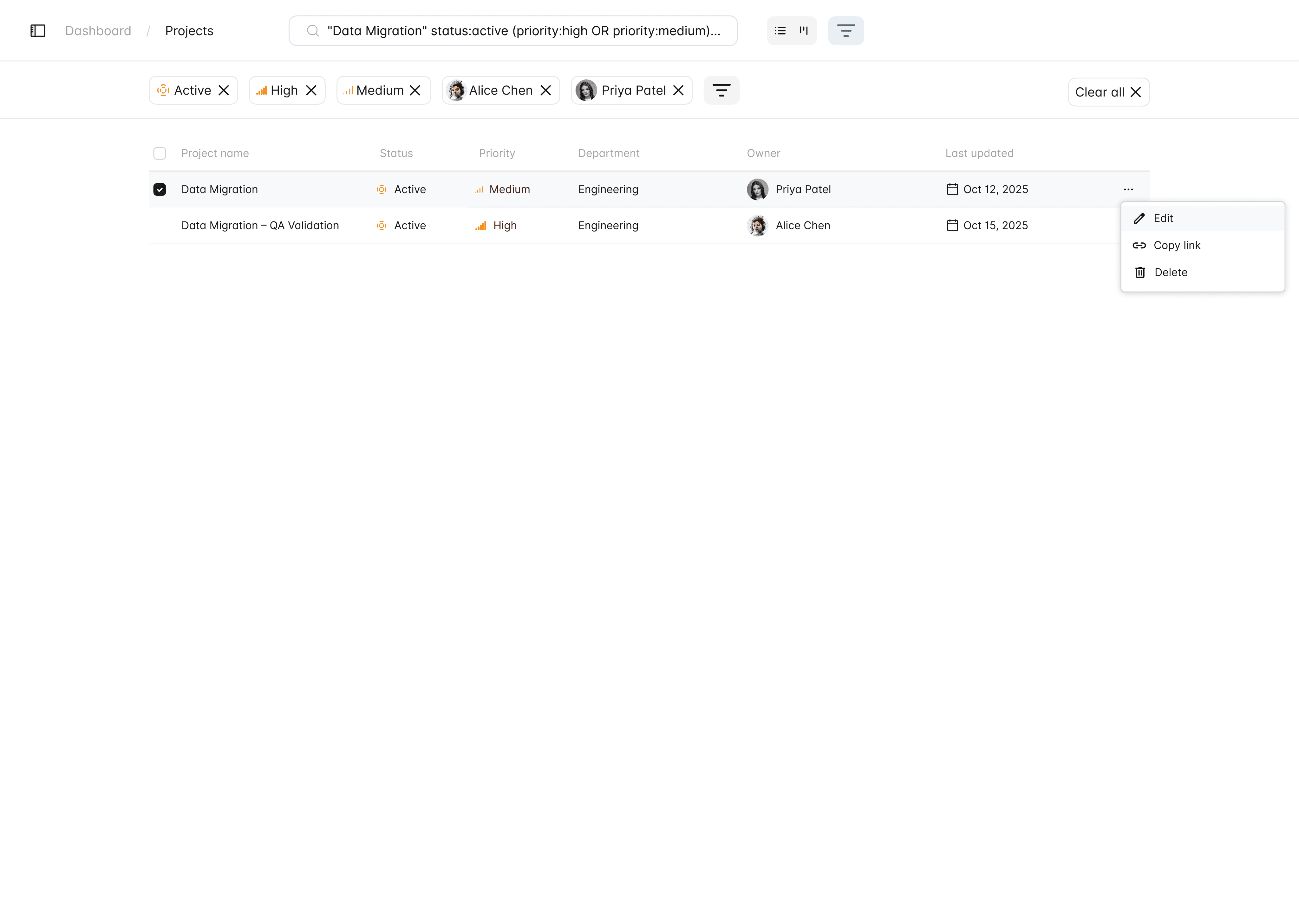
Users can enter advanced query syntax in the search bar (e.g., status:active priority:high owner:Alice Chen) and the system automatically generates corresponding filter chips below the search bar.
During secondary research get to know enterprise users primarily use them
Mark tried out various filters effortlessly and got the project he looking for.
Step 1: Click on Filter
1
2
Tab to switch between table to card view.
Filter chips for each major category
3
Filter appears next to filter chips as well
4
Query syntax based search
Which generates chips automatically, user can still manually change them
1

2
User can check the project page
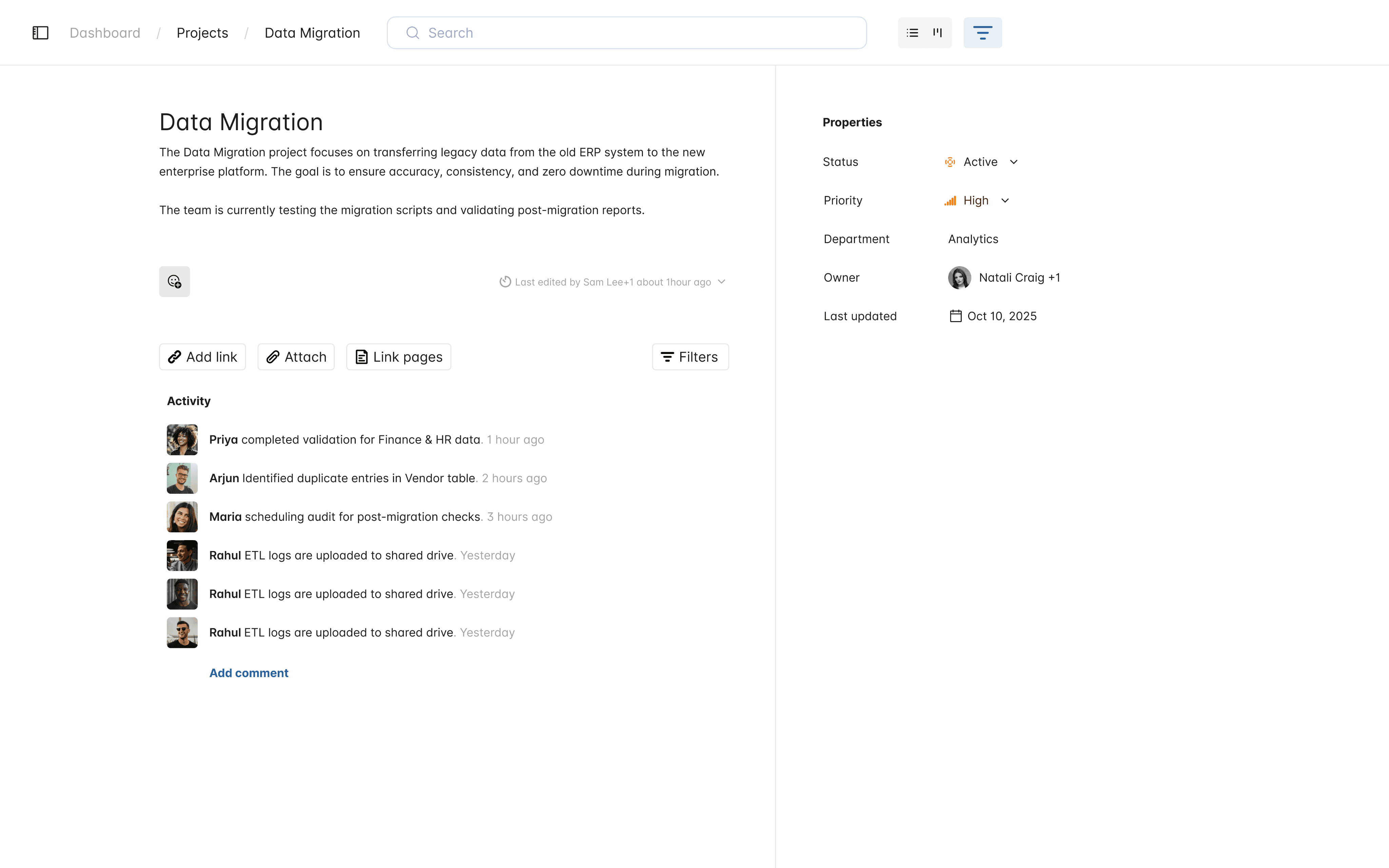
Project Overview Window
When a user clicks on a project, an overview window opens to provide all essential information at a glance, helping them quickly understand the project’s status and context.
Project Title & Summary: Clearly shows the project name and a short explanation of its purpose.
Recent Comments: Shows latest team updates or discussions, giving context without leaving the page.
Project Properties: Includes key details like Owner, Department, Last Updated, and other relevant attributes.
No Project Found – AI Guidance
If a search or filter returns no results, the system displays a clear empty state with AI-powered guidance to help users find what they need.
AI Nudge Text: Suggests alternative searches or filters, e.g., “Try searching ‘Data Migration progress’” or “Add a filter for Status: Active.”
Keeps the user informed and guides them toward successful results instead of leaving them at a dead-end.
Project Overview Window
Project Learnings
Working on this project was both fun and challenging, I learned following things-
• Get to know about enterprise project management
• Learned how AI is integrated in search & Filter experience
No Project Found Page